IArticleButtonItem
Describes a button item that will be embedded in the article sidebar.
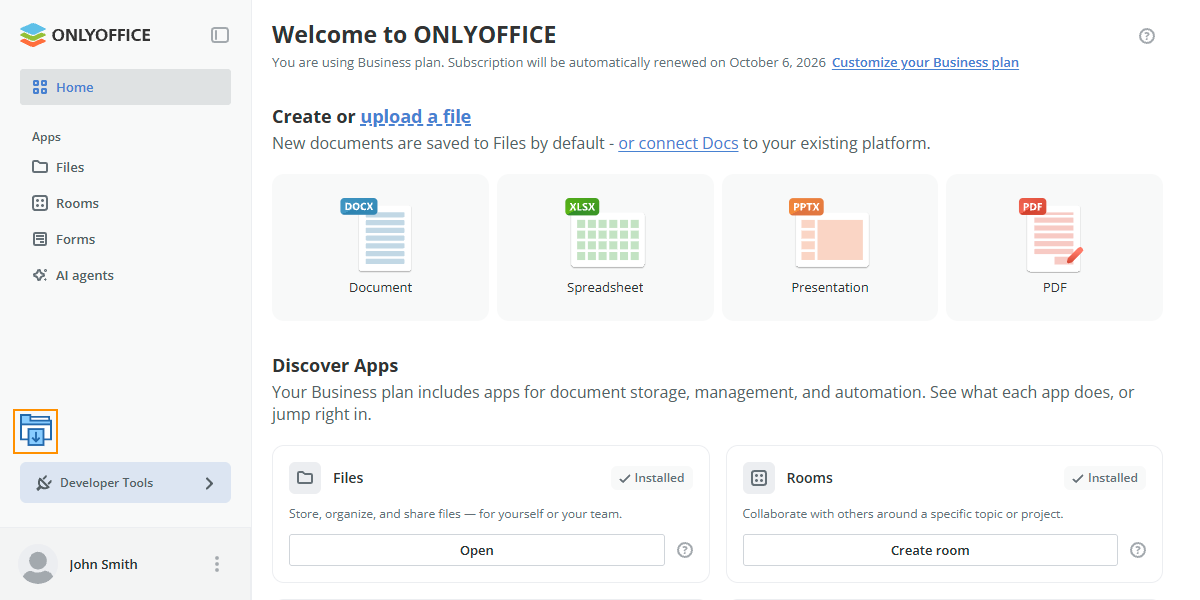
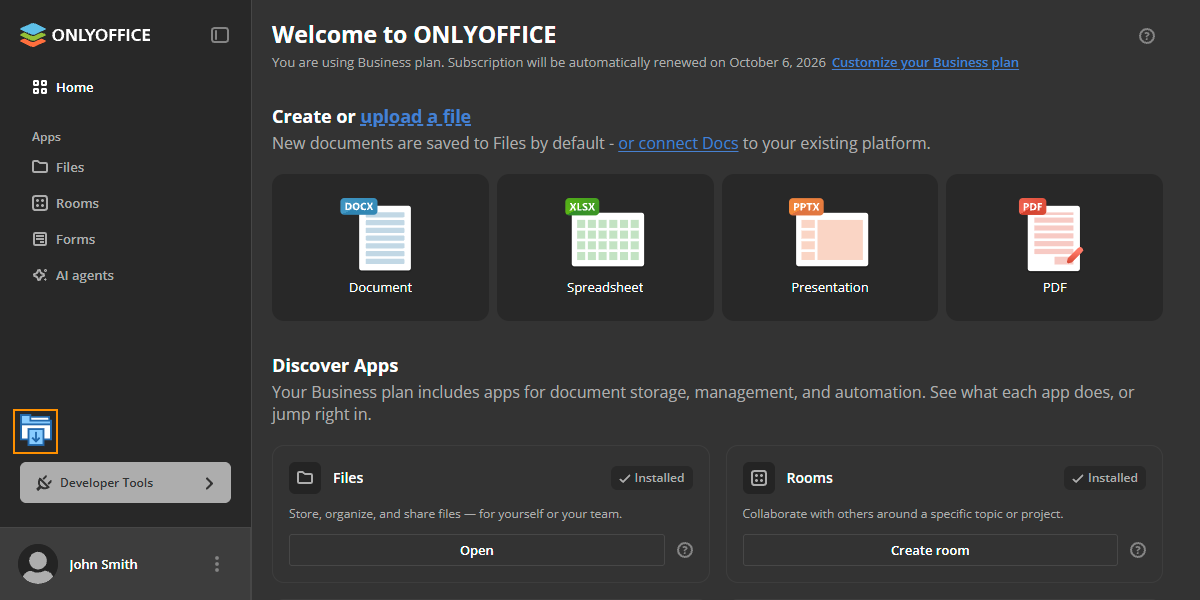
Article button items are displayed as custom plugin components above the DevTools section.
Maximum 5 items can be displayed at once across all the installed plugins,
in registration order.
Each one is drawn in a fixed 32x32 box with overflow: hidden, so a label
does not fit — use an icon and put the words in its title.
Items are registered by a plugin implementing
IArticleButtonPlugin.
Examples
Article button item with a React component
import { usePluginActions } from "@onlyoffice/docspace-plugin-sdk/react";
import { IArticleButtonItem, ToastType, UserRole } from "@onlyoffice/docspace-plugin-sdk";

function NotificationsButton() {
  const { showToast } = usePluginActions();

  return (
    <button
      type="button"
      title="Notifications"
      style={{ width: 32, height: 32, border: "none", background: "none", cursor: "pointer" }}
      onClick={() => showToast({ type: ToastType.info, title: "No new notifications" })}
    >
      <svg viewBox="0 0 16 16" width="16" height="16" aria-hidden>
        <path fill="currentColor" d="M8 2a4 4 0 0 0-4 4v3l-1 2h10l-1-2V6a4 4 0 0 0-4-4Z" />
      </svg>
    </button>
  );
}

const notificationItem: IArticleButtonItem = {
  key: "notifications-item",
  component: NotificationsButton,
  usersTypes: [UserRole.owner, UserRole.fullAdmin]
};
Article button item that loads its own state
The component owns its loading state, so no onLoad callback is needed:
fetch inside useEffect and render a placeholder until the data arrives.
import { useEffect, useState } from "react";
import { usePluginAPI, usePluginActions } from "@onlyoffice/docspace-plugin-sdk/react";
import { IArticleButtonItem, Devices, UserRole } from "@onlyoffice/docspace-plugin-sdk";

function PendingInvitesButton() {
  const api = usePluginAPI();
  const { navigate } = usePluginActions();
  const [count, setCount] = useState<number | null>(null);

  useEffect(() => {
    api
      .get<{ total: number }>("/people/invites")
      .then((invites) => setCount(invites.total));
  }, []);

  if (count === null) return null;

  return (
    <button
      type="button"
      title={`Invites (${count})`}
      style={{ width: 32, height: 32, border: "none", background: "none", cursor: "pointer" }}
      onClick={() => navigate("/accounts/people")}
    >
      {count}
    </button>
  );
}

const invitesItem: IArticleButtonItem = {
  key: "pending-invites-item",
  component: PendingInvitesButton,
  usersTypes: [UserRole.owner, UserRole.fullAdmin],
  devices: [Devices.desktop, Devices.tablet]
};
Properties
| Property | Type | Description |
|---|---|---|
key | string | The unique item identifier used by the service to recognize the item |
body | IBox | The body of the article button item rendered via the IBox component tree. This is the main content that will be displayed. Use either body or component, not both. Deprecated: Use component instead — accepts a React component and supports hooks from @onlyoffice/docspace-plugin-sdk/react. |
component | ComponentType | A React component rendered as the article button item. The slot has no click handler of its own. Use either component or body, not both. The component can use usePluginActions, usePluginAPI and other hooks from @onlyoffice/docspace-plugin-sdk/react. |
onLoad | () => Promise<{ body?: IBox; }> | A function that is executed after the article button item is loaded. It returns a new body. If this functionality is not needed, the old body value is returned. Deprecated: Use a React component via component with useEffect for data loading instead. |
usersTypes | (UserRole | UsersType)[] | The types of users who will see the current button item in the article. Currently the following user types are available: owner, fullAdmin, roomAdmin, user, guest. If this parameter is not specified, then the item will be displayed for all user types. |
devices | Devices[] | The types of devices where the current button item will be displayed. At the moment the following device types are available: mobile, tablet, desktop. If this parameter is not specified, then the item will be displayed on all device types. |