Getting started with the ONLYOFFICE Apps MCP server
Connect the ONLYOFFICE Apps MCP server to Claude Desktop and start interacting with your ONLYOFFICE Apps workspace through natural language.
Step 1: Connect to MCP client
MCP clients like Claude, VS Code, and Devin Desktop act as a bridge to the ONLYOFFICE Apps MCP server, enabling LLMs to access and use the ONLYOFFICE Apps workspace and tools, thus improving the overall capabilities of ONLYOFFICE Apps. This guide uses the Claude Desktop client and connects to a local MCP server. You can also access via a remote server.
Ensure Docker is installed on your system.
To connect Claude Desktop to your local MCP server:
- Open Claude Desktop.
- Navigate to Settings.
- Navigate to Developer.
- Click Edit config.
- Open the configuration file (
claude_desktop_config.json) in a text editor. - Add the
mcpServerssection from the example below to the top level of the file. If the file already contains other settings, copy the example without its outer braces and separate it from the existing settings with a comma:{"mcpServers": {"onlyoffice-apps": {"command": "docker","args": ["run","--interactive","--rm","--env","DOCSPACE_BASE_URL","--env","DOCSPACE_API_KEY","onlyoffice/docspace-mcp"],"env": {"DOCSPACE_BASE_URL": "https://your-instance.onlyoffice.com","DOCSPACE_API_KEY": "your-api-key"}}}}
Where:
DOCSPACE_BASE_URL- the URL of your ONLYOFFICE Apps instance (e.g. https://your-instance.onlyoffice.com).DOCSPACE_API_KEY- your personal API key generated in ONLYOFFICE Apps Developer Tools → API keys (open Developer Tools from the banner at the bottom of the left sidebar).
- Save the file and quit Claude Desktop.
It's important to quit and not just close the Claude Desktop window as quitting and restarting the app reloads the claude_desktop_config.json configuration with the new mcpServers entry. On Windows, right-click the Claude icon in the system tray and select Exit.
Step 2: Confirm the connection
-
Open Claude Desktop.
-
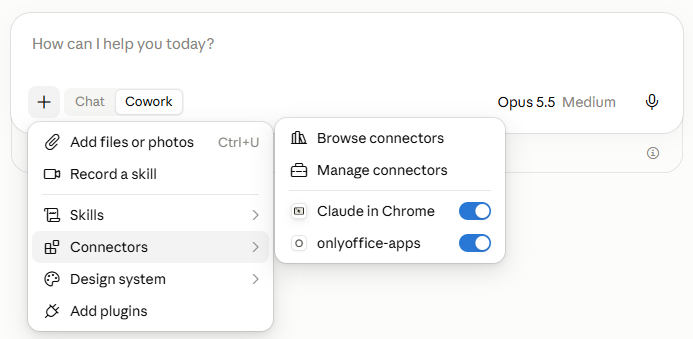
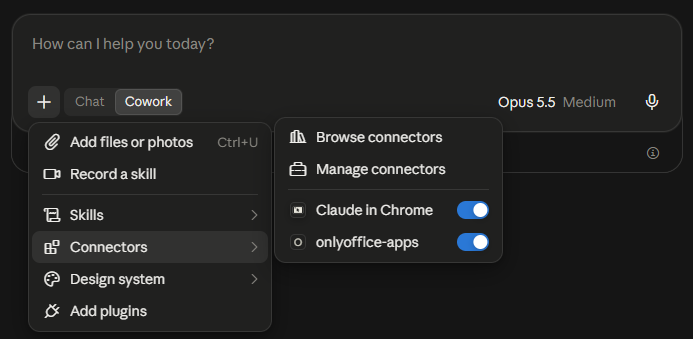
Click + > Connectors on the chat bar.
Our newly configured MCP server (onlyoffice-apps) is now enabled.
Step 3: Interact with your ONLYOFFICE Apps workspace using the newly connected client
Now we have our connection, let us interact with ONLYOFFICE Apps via Claude:
- Let's create a new room. Claude requests permission to create this room.
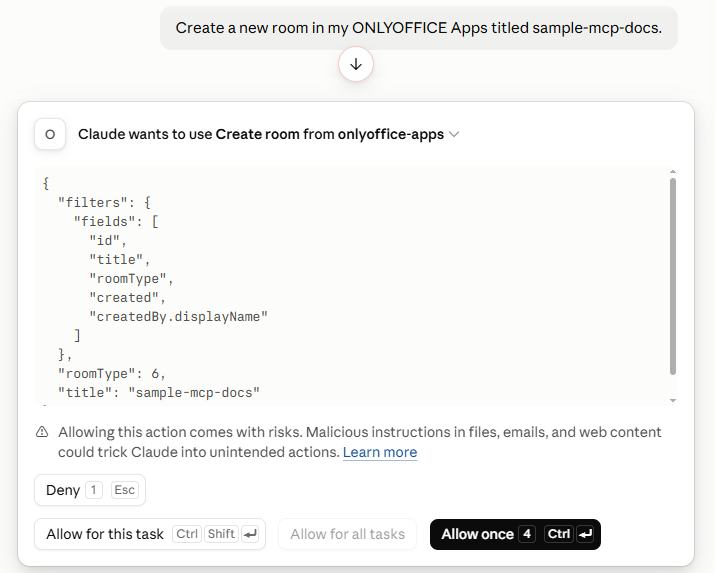
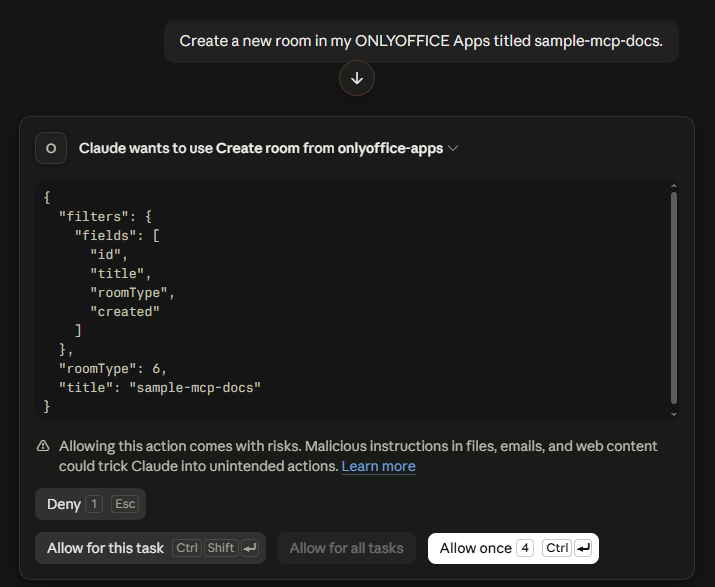
You can confirm this new room in your ONLYOFFICE Apps account.
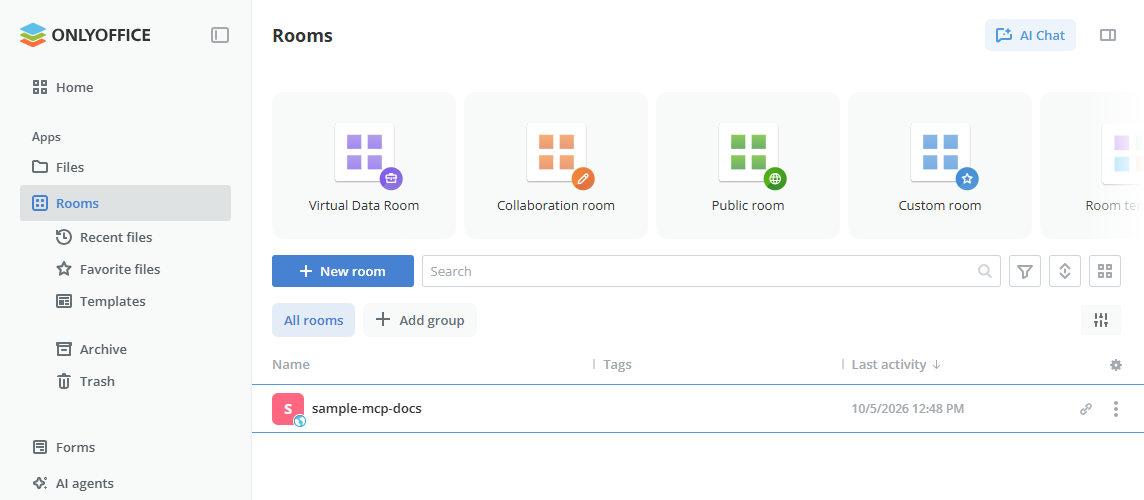
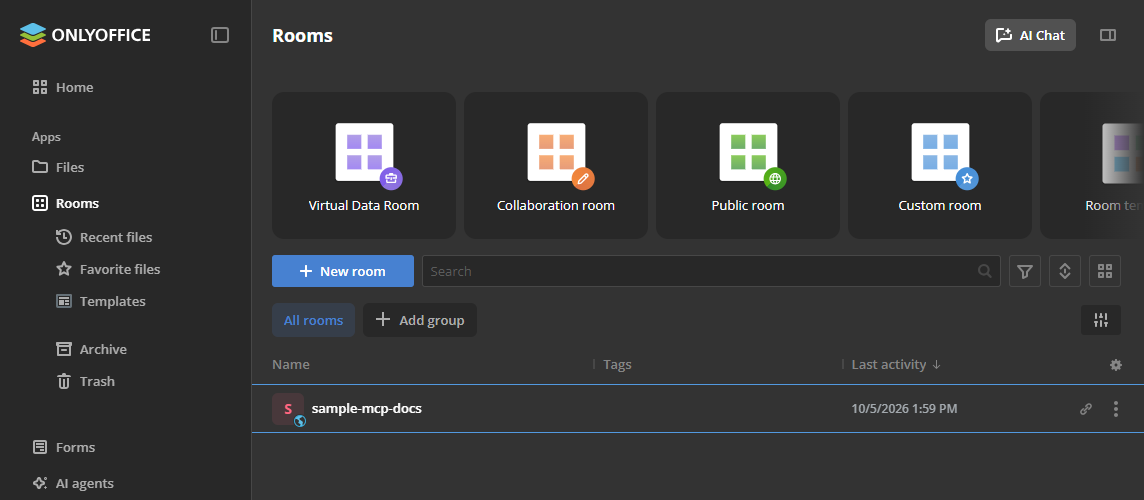
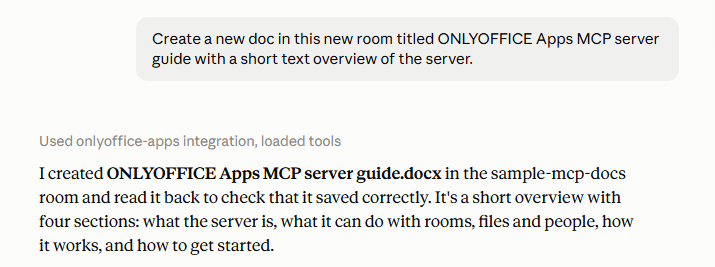
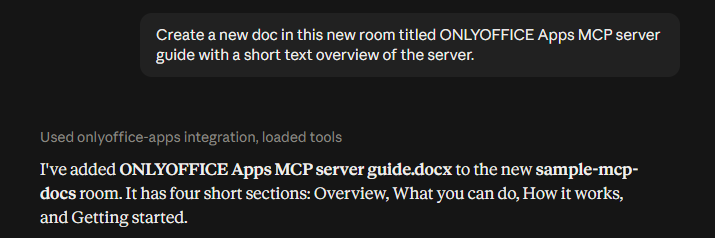
- Now, create a new document in this room.
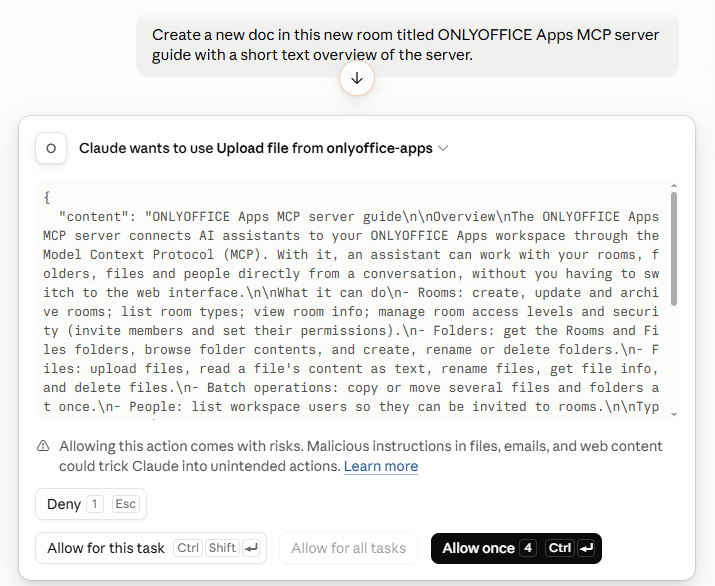
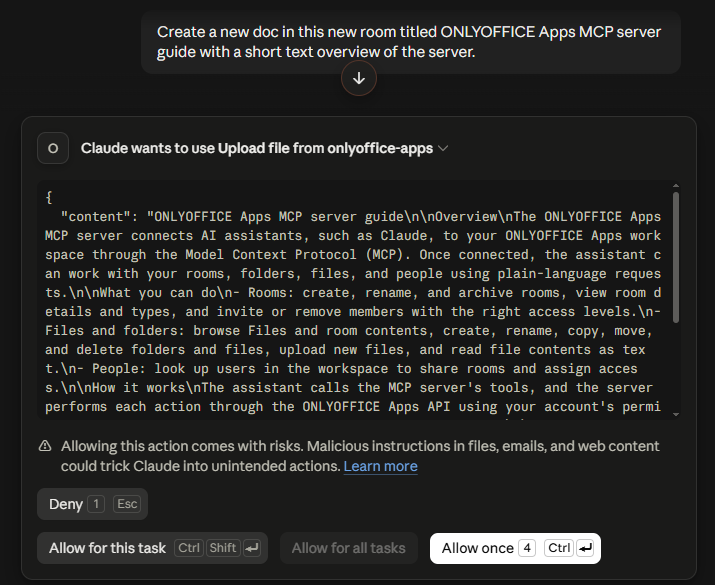
Confirm the new document was created.
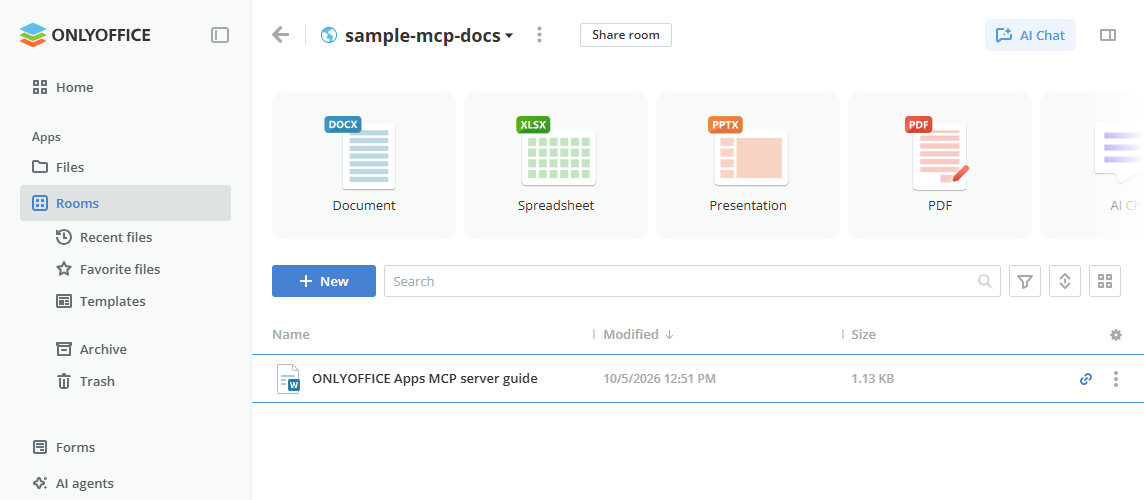
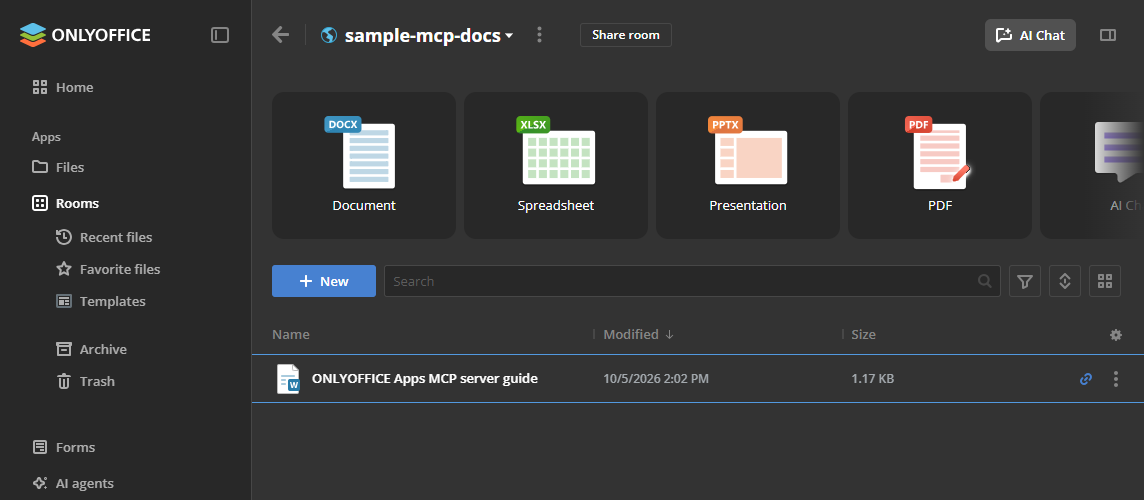
You can confirm the existence of this new document in the new room in your ONLYOFFICE Apps workspace.
Next steps
- Discover other ways to connect to ONLYOFFICE Apps MCP server
- Learn how to explore this connection for tasks like onboarding team members, managing projects, and effectively archiving projects after completion.