Image editor
View and edit images directly in ONLYOFFICE Apps.
Installation
Available by default in the ONLYOFFICE Apps SaaS solution.
You can enable it following the instructions here.
Configuration
To start working with the plugin, you don't need to change any settings — the Image editor plugin has no configurable parameters.
If you want to view plugin information, go to Settings → Integration → Plugins and click 
 next to the image-editor plugin. The settings panel displays metadata only, such as the author, version, status, homepage, and description.
Usage
To edit an image:
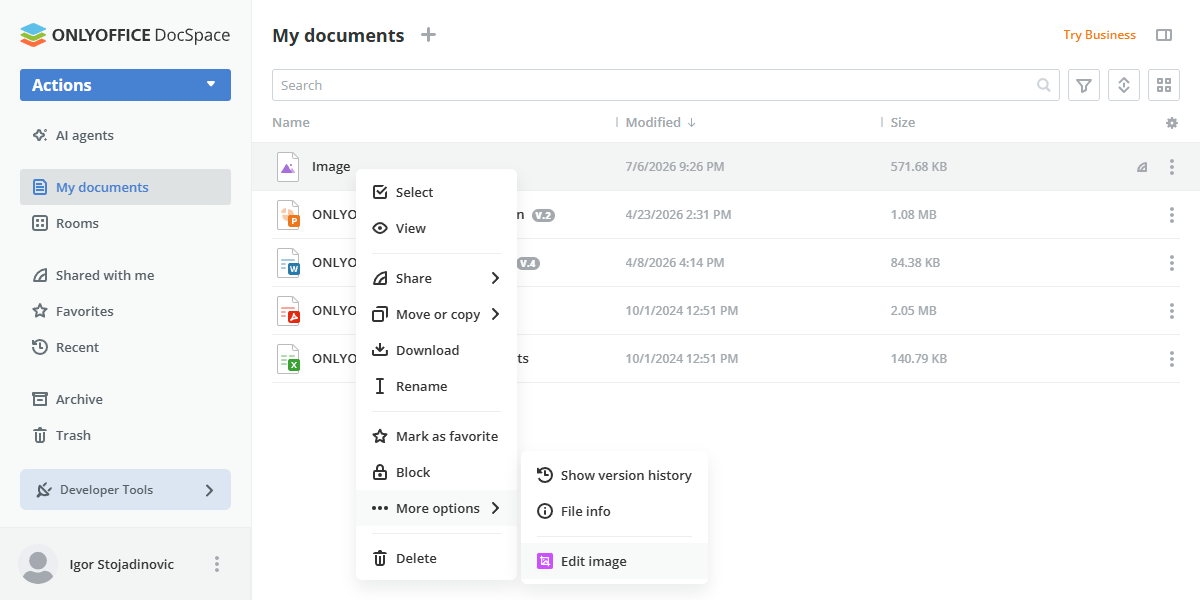
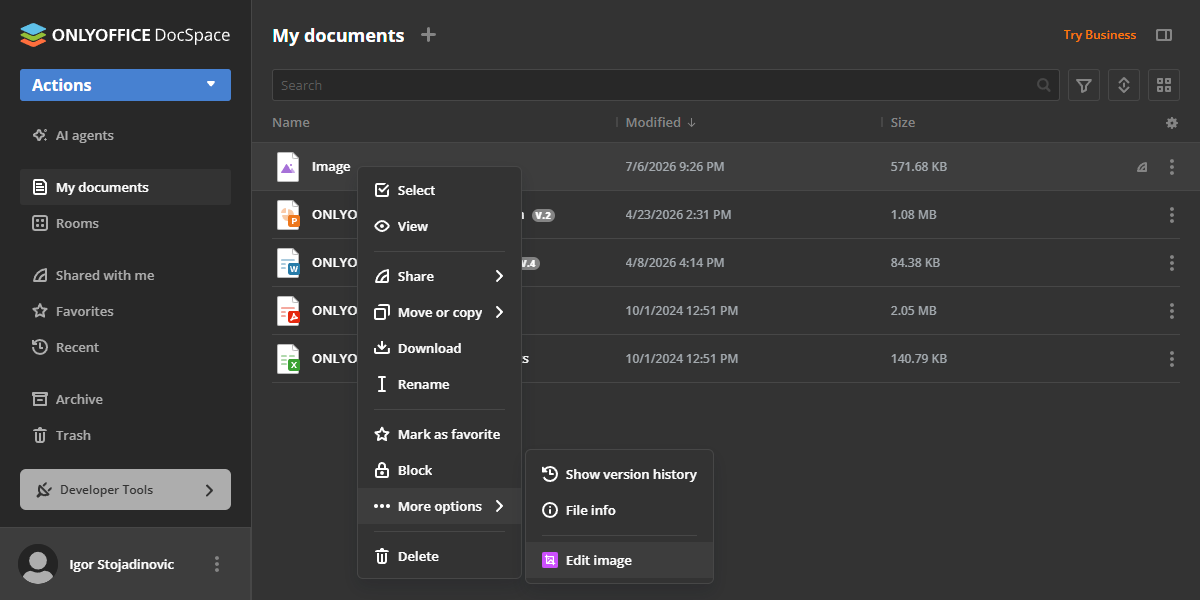
- Right-click on an image file in the file list.
- Navigate to the More options dropdown menu and select Edit image.
- The image editor opens in a pop-up window with a toolbar on the right featuring various tools:
- Resize - change image dimensions
- Crop - crop the image to a specific area
- Flip - flip the image horizontally or vertically
- Rotate - rotate the image
- Draw - draw freehand on the image
- Shape - add shapes to the image
- Icon - add icons to the image
- Text - add text to the image
- Mask - apply masks to the image
- Once you've made your edits, click Save and exit to apply the changes.
After saving, a notification confirms the successful update, and the file version is updated accordingly.
Supported formats
.jpg, .jpeg, .png, .gif, .webp, .svg, .bmp, .tiff, .ico
Plugin structure
Repository on GitHub: image-editor.
All the required files are described here.
Interfaces
The following plugin interfaces are used:
- IPlugin. Required for each plugin. It contains the plugin status (PluginStatus) variable, used to embed the plugin into ONLYOFFICE Apps.
- IApiPlugin. Required for API interactions with ONLYOFFICE Apps.
- IContextMenuPlugin and IContextMenuItem. Used to implement the Edit image context menu action for supported image formats.
Support
If you want to request a feature or report a bug regarding this plugin, use the issues section on GitHub.