Authentication and security
Choosing the right authentication approach depends on who your users are and whether they have ONLYOFFICE Apps accounts:
- Your users already have ONLYOFFICE Apps accounts — rely on the existing browser session. The iframe picks it up automatically. See Session-based authentication below.
- You control the login UI — authenticate programmatically using
getHashSettings()→createHash()→login()before initializing any frame. See the Authorization sample and Login sample. - Your backend already manages its own access tokens — skip the ONLYOFFICE Apps session and cookies entirely, and authorize API calls with a Bearer token your backend issues. See OAuth authentication below.
- Your users have no ONLYOFFICE Apps account — embed a public room using
requestToken. No login required on the viewer's side. See Token-based auth for public rooms below.
Session-based authentication
The simplest option when your users already have ONLYOFFICE Apps accounts: api.js uses the active ONLYOFFICE Apps application session to authenticate them. If the user is logged in to the ONLYOFFICE Apps portal that the SDK will connect to, then api.js recognizes and uses that active session — no extra configuration needed.
If the users are not authenticated, they will see a page asking them to sign in to ONLYOFFICE Apps whenever they are not already signed in. Authentication is also possible through the SDK login method.
OAuth authentication
A more advanced, cookie-free alternative to session-based authentication: instead of relying on the ONLYOFFICE Apps session cookie, the frame authorizes every API call with a Bearer access token that your own backend provides. Reach for this when your host application already has its own OAuth infrastructure and you'd rather manage tokens directly than depend on the session/cookie behavior of ONLYOFFICE Apps. It works the same way in every embedding mode.
Supply a getToken callback in the frame config:
const docSpace = DocSpace.SDK.initManager({
  frameId: "ds-frame",
  src: "https://your-docspace.com",
  getToken: async () => {
    const response = await fetch("/api/docspace-token");
    const { accessToken } = await response.json();
    return accessToken;
  },
  events: {
    onAuthError: ({ code, message }) => {
      console.warn(`Auth failed: ${code} ${message}`);
      docSpace.destroyFrame();
    },
  },
});
Your backend should perform the OAuth authorization-code / refresh-token exchange and return a fresh, minimally-scoped ONLYOFFICE Apps access token. getToken is called on demand — when the frame first needs a token, and again after a portal request comes back 401 — and also proactively, about a minute before the current token expires, so a request is never made with a token that's already stale. See OAuth 2.0 for how to register an application and obtain tokens.
Proactive refresh needs an expiry to schedule against. For a JWT access token, the SDK reads it straight from the token's own exp claim — nothing to configure. For an opaque (non-JWT) token, set tokenExpiresAt (epoch milliseconds) in the config. It applies to the first token only: the SDK doesn't consult it again, so a later opaque token has no known expiry. A token without a known expiry still works, but it isn't refreshed ahead of time — the next refresh happens only after that token fails a request with a 401.
It's recommended to always include the Profile scope (accounts.self:read) alongside whatever resource scopes you need (files:*, rooms:*) — the frame fetches your own profile internally regardless of mode, and without this scope that request fails. Some modes tolerate the failure and keep working; Manager mode does not and may fail to render.
Never expose client_secret or refresh tokens to the browser. Perform the token exchange on your backend and return only the short-lived access token to getToken.
If you already have a valid token and don't need the SDK to refresh it, pass it directly via accessToken instead of a callback. A static accessToken is never refreshed by the SDK — proactively or on a 401 — so use getToken for anything that needs to outlive the token's own TTL.
login() and logout() are unavailable in OAuth mode — both reject with SDKErrorCode.ModeMismatch, since the host owns the session instead of the portal's own cookie-based one: login() rejects with "login is not available in OAuth mode: the host supplies the access token via getToken", logout() with "logout is not available in OAuth mode: revoke the token on the host and call destroyFrame". There's no session cookie to end in the first place, so ending a session is a host-side action, not a frame call: stop renewing the token on your backend (revoke the refresh token, if your OAuth provider supports that), then call destroyFrame() — nothing else in the browser would otherwise stop the frame from working with whatever token it was last given.
If the frame's own UI exposes a sign-out action (Manager mode's profile menu, when shown) and a visitor uses it, the frame latches into a signed-out state for the rest of that frame's lifetime — it stops asking for tokens entirely instead of silently fetching a new one and carrying on as if nothing happened. onSignOut still fires, the same as in session-based auth. This latch lives inside the iframe's own document, so it doesn't need to be undone: a fresh init*() call creates a new frame with a clean state. (Forms, Chat, Personal, and Public room mode have neither a sign-out button nor this latch — they're built on a different app than Manager's.)
The frame never shows the ONLYOFFICE Apps sign-in page in OAuth mode. If no usable token is available, it stays on a loader and reports the problem through onAuthError instead of onAppError, with a code identifying what went wrong:
TOKEN_RESOLVE_FAILED—getTokenthrew, rejected, or returned nothing, or neithergetTokennoraccessTokenis set. Reported by the SDK itself.TOKEN_UNAVAILABLE— the frame asked for its first token and got none back within 10 seconds. Reported by the portal.TOKEN_REFRESH_FAILED— the frame asked for a fresh token after a401and got none back. Reported by the portal.UNAUTHORIZED— the portal didn't accept the token: either a fresh token still got401again, or the token you supplied didn't produce a signed-in session at start. The token is invalid, expired, or missing a scope the current page needs. Reported by the portal.
A getToken failure on the very first token request typically fires both of the first two, not just one: TOKEN_RESOLVE_FAILED arrives immediately from the SDK, and TOKEN_UNAVAILABLE follows about 10 seconds later — the portal waits out its own timeout for a token reply that was never going to arrive, since getToken never produced one to send.
Treat all four as the same kind of problem in practice: something is wrong with the token your backend is producing, or the session it depends on at the OAuth provider has ended. Re-check getToken's own logic first; if that isn't it, call destroyFrame() and send the user back through your own re-authentication flow rather than leaving the frame stuck on its loader. There's no dedicated onAuthSuccess for OAuth mode — that event only fires from the ONLYOFFICE Apps confirm-by-link login page — so a successful token resolution is visible only indirectly, through the frame loading and firing onAppReady.
Full parameter reference: TFrameConfig#getToken, TFrameConfig#accessToken.
Token-based auth for public rooms
To embed a public room without requiring the viewer to be an ONLYOFFICE Apps user, pass a requestToken in the frame config:
DocSpace.SDK.initPublicRoom({
  frameId: "ds-frame",
  src: "https://your-docspace.com",
  requestToken: "<your-room-access-token>",
  id: "your-room-or-folder-id",
});
The token is scoped to a specific room and grants access to its contents without requiring the viewer to have an ONLYOFFICE Apps account. See Public room mode for the full parameter reference.
requestToken isn't accepted by every init method — only Public room, Manager, and Editor/Viewer mode read it; selector, Uploader, Forms, Chat, Personal, and System mode ignore it. In Manager mode it opens the room's classic shared-link path (/rooms/shared/?key=...) instead of the dedicated Public room UI shown above — for a public-facing embed, initPublicRoom is the intended entry point.
Never expose admin-level tokens in client-side code. Obtain requestToken values server-side and inject them into the page at render time.
Registering allowed embed origins
For the Embed SDK to work correctly, it must be launched on the server. Note that running the HTML file directly will not work. Please make sure you are using a server environment.
You need to add the URL of your server's root directory to the Developer Tools section of ONLYOFFICE Apps:
- Click the Developer Tools banner at the bottom of the left panel.
- Select Embed SDK in the left menu.
- In the Enter the address of ONLYOFFICE Apps to embed field, add the URL of your server's root directory.
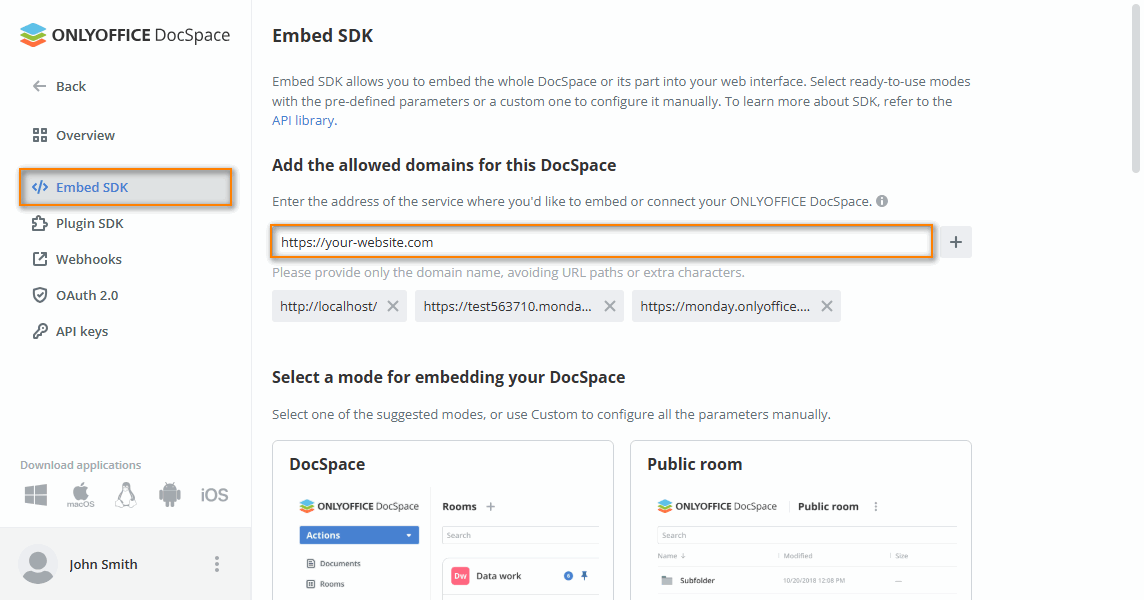
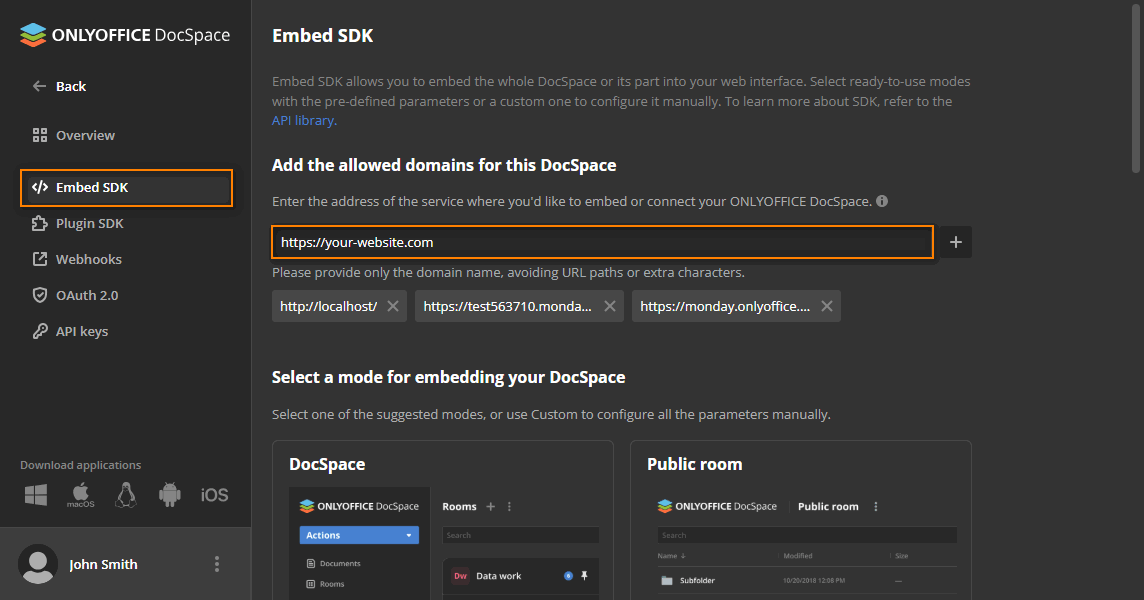
Only exact origins are matched — subdomains and paths are not automatically included. Add each distinct origin separately.
SameSite cookie requirements
When ONLYOFFICE Apps is embedded in an iframe on a different domain, the browser must send the ONLYOFFICE Apps session cookie with the cross-origin request. Otherwise, the embedded ONLYOFFICE Apps behaves as if no user is logged in.
You don't need to configure the cookie attributes manually. ONLYOFFICE Apps sets Secure and SameSite=None on the authentication cookie automatically, and adds the Partitioned attribute, when both of these conditions are met:
- the request comes over HTTPS;
- the CSP allowlist isn't empty (see Registering allowed embed origins).
Otherwise, the cookie falls back to SameSite=Strict, and the embedded frame loses the session. So make sure that both the ONLYOFFICE Apps server and the embedding page are served over HTTPS, and that the embedding origin is in the allowlist. The mode can be overridden with the web:samesite configuration key on the ONLYOFFICE Apps server, but this is rarely needed.
Thanks to the Partitioned attribute, browsers that support CHIPS (Chrome, Firefox, and Safari 18.4+) keep the session cookie in separate storage under the embedding site, even when third-party cookies are blocked.
Content Security Policy (CSP)
Before initializing the iframe, the SDK checks whether the embedding domain is in the ONLYOFFICE Apps CSP allowlist. If not, initialization fails with:
"The current domain is not set in the Content Security Policy (CSP) settings."
The current CSP allowlist can be checked via GET /api/2.0/security/csp. To add your domain, register it in Developer Tools → Embed SDK as described in Registering allowed embed origins above.
The check compares only the embedding page's host and port against the allowlist — the scheme (http vs https) isn't part of the comparison, so an http and https variant of the same host are indistinguishable to the SDK. It's also skipped automatically when the embedding page and src share the same origin.
checkCSP: false skips this fetch entirely — it's a client-side optimization for when you already know your origin is allowlisted (avoiding the extra round trip to /api/2.0/security/csp on every load), not a way to bypass the restriction. The portal still sends its own CSP headers regardless of this setting, and the browser enforces frame-ancestors on top of them — an unauthorized origin's iframe will still be blocked even with checkCSP: false, it just fails later (as a browser-level CSP violation) instead of showing the SDK's own error page.