For desktop editors
To debug ONLYOFFICE plugins in the desktop editors, use the --ascdesktop-support-debug-info flag. To do this, follow the instructions here depending on the operating system you use.
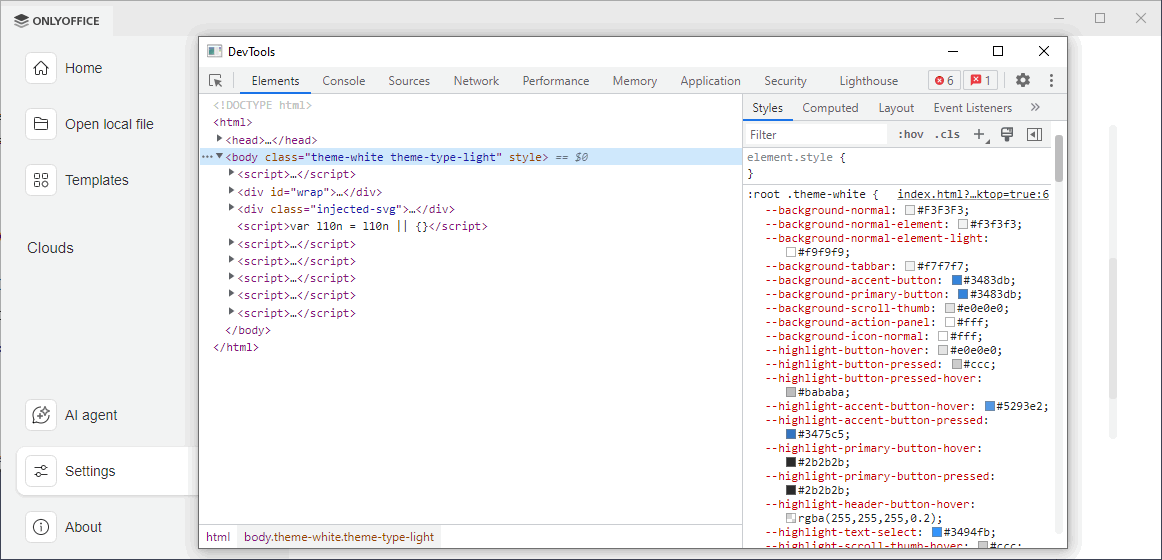
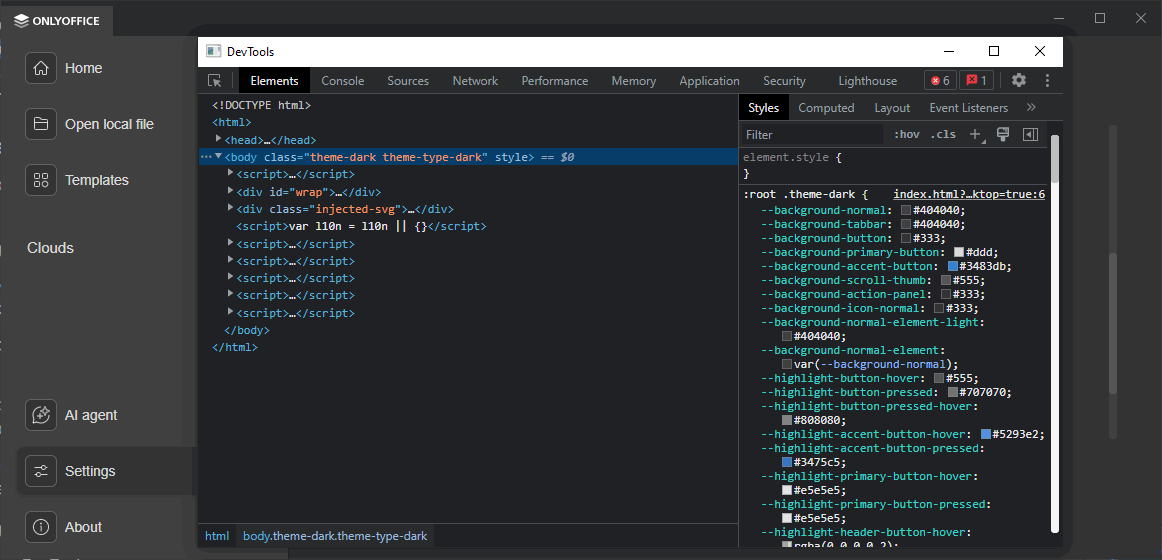
Debugging tools
Developer console
- Open DevTools (
F12). - Select the plugin iframe in the frame selector so logs run in the correct context.
- Use console methods to inspect state:
console.log("Debug:", value);
console.info("Info:", info);
console.warn("Warning:", warnValue);
console.error("Error:", errorObj);
Breakpoints
- Insert
debugger;where you want execution to pause. - DevTools must be open before plugin execution.
this.callCommand(function () {
  debugger;
  // code to inspect
});
tip
Alternatively, you can set debug breakpoint manually in DevTools: open Sources > locate your plugin file > click a line number to add a breakpoint (right-click for conditional breakpoints).
Best practices
Debugging plugin initialization
(function (window, undefined) {
  window.Asc.plugin.init = function () {
    console.log("Plugin initialization started");
    try {
      // Initialization
      this.callCommand(function () {
        debugger;
        var oDocument = Api.GetDocument();
        var oParagraph = Api.CreateParagraph();
        oParagraph.AddText("Test Example");
        oDocument.InsertContent([oParagraph]);
      });
    } catch (error) {
      console.error("Initialization failed:", error);
    }
  };
})(window, undefined);
Debugger use case and scope managing
You can use external variables in your plugins by attaching them to Asc.scope object.
(function (window, undefined) {
  window.Asc.plugin.init = function () {
    console.log("Plugin initialization started");
    try {
      var text = "Test Example";
      Asc.scope.text = text; // Attach text variable to asc scope
      // Initialization
      this.callCommand(function () {
        debugger;
        var oDocument = Api.GetDocument();
        var oParagraph = Api.CreateParagraph();
        oParagraph.AddText(Asc.scope.text); // Execute
        oDocument.InsertContent([oParagraph]);
      });
    } catch (error) {
      console.error("Initialization failed:", error);
    }
  };
})(window, undefined);