Types
The plugin type is specified with the type parameter in the config.json file. The available values are system, background, window, panel, panelRight, and unvisible.
system
The system plugin is not displayed in the editor interface and is started in the background with the server (or desktop editors start) not interfering with other plugins, so that they can work simultaneously. You don't need to run such plugins. And unlike background plugins, they cannot be disabled.
Samples: Settings, Search and replace on start
background
The background plugin works until you disable it in all opened documents and documents that will be opened later. The plugin state (enabled / disabled) persists between sessions. To access background plugins, click the Background Plugins button on the top toolbar.
A background plugin is considered as bundled if it has the following characteristics:
- It is included in the product distribution (server/desktop).
- It has not been updated, removed, or disabled.
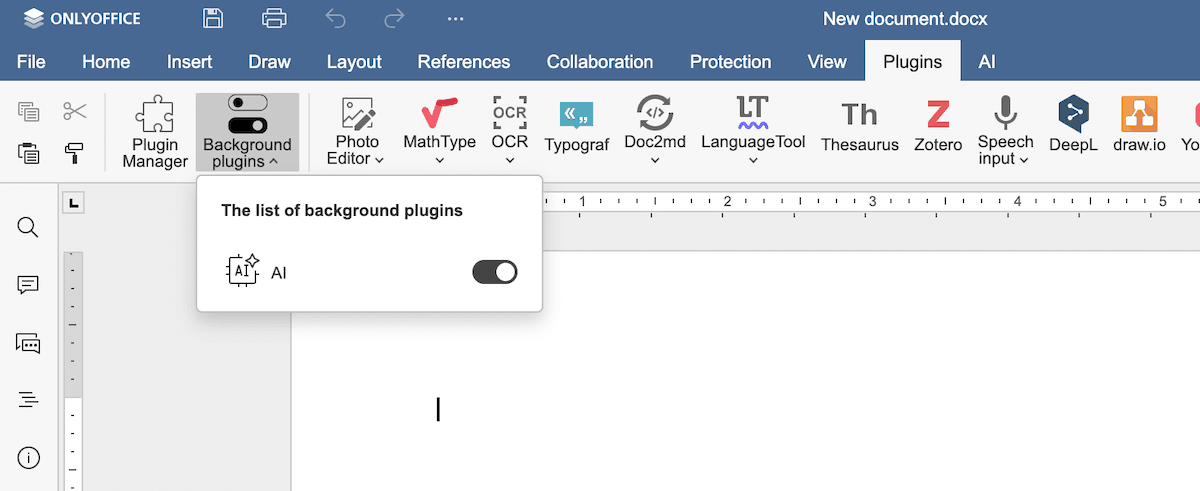
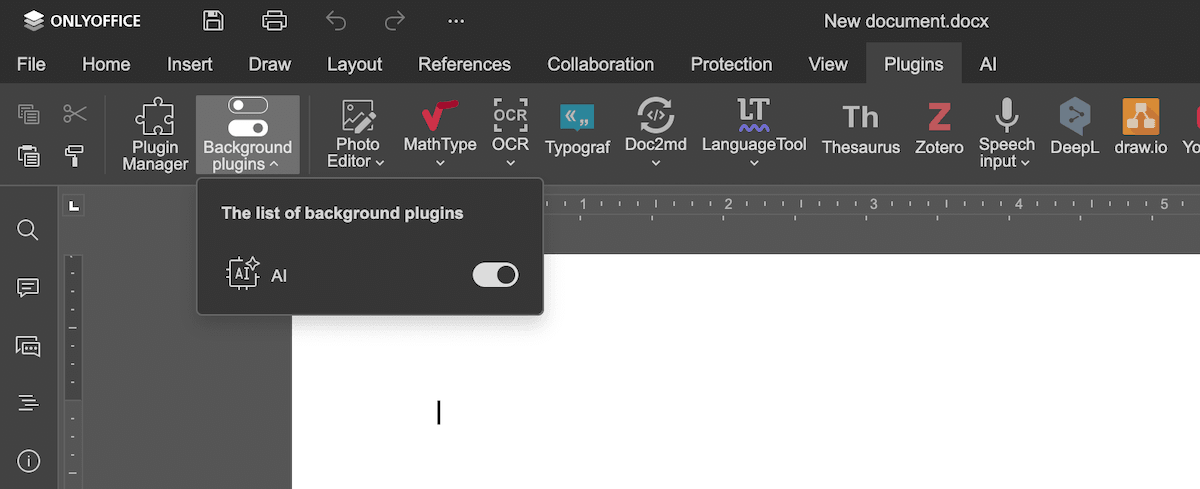
If a plugin is bundled and background, it starts immediately (from version 9.0.4).
Samples: AI, QR Code Generator
window
The plugin operates as a standalone window upon launch.


Samples: Highlight code, Photo editor, OCR
panel
The plugin is opened in the left-side panel. You can run multiple panel plugins at the same time. For each plugin, a separate button will appear on the left toolbar.
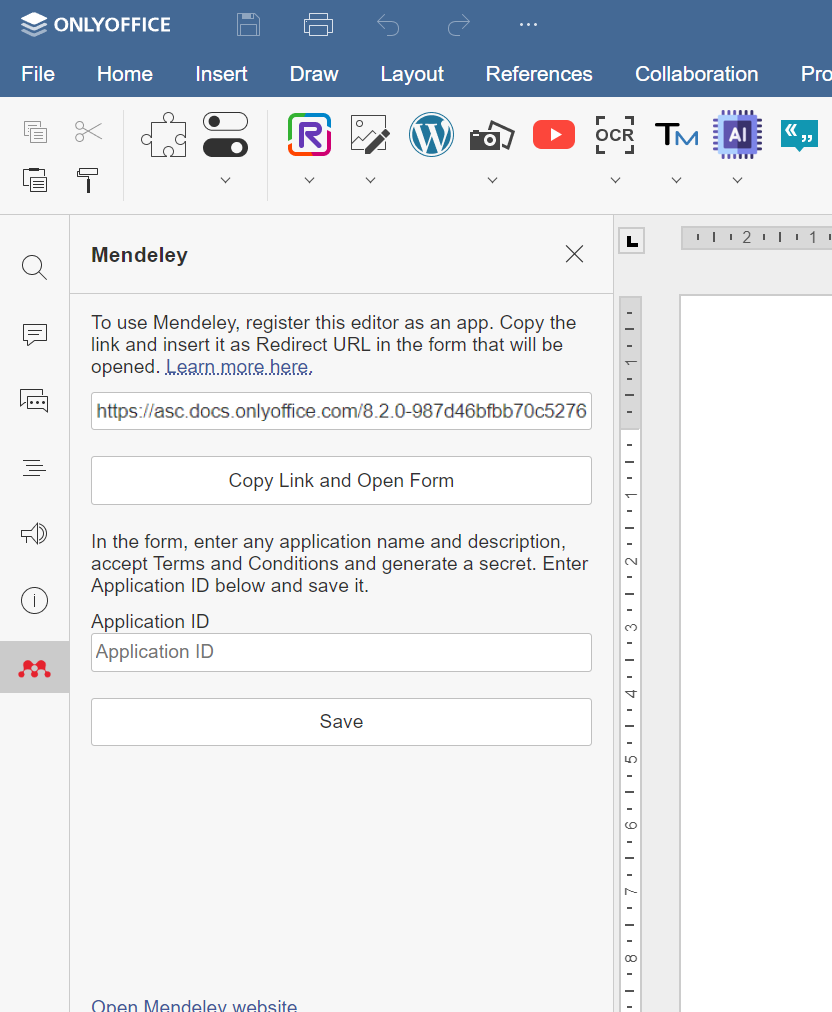
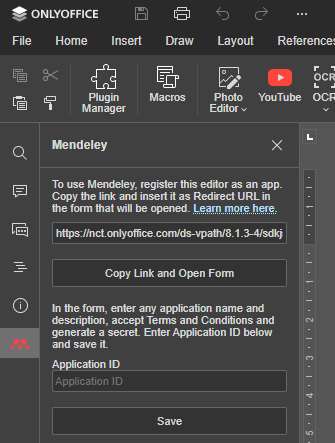
Samples: Translator, Thesaurus, Zotero
panelRight
The plugin is opened in the right-side panel. You can run multiple panel plugins at the same time. For each plugin, a separate button will appear on the right toolbar.
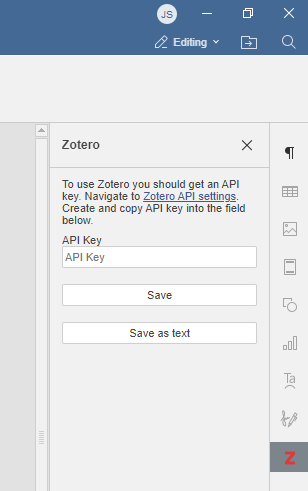
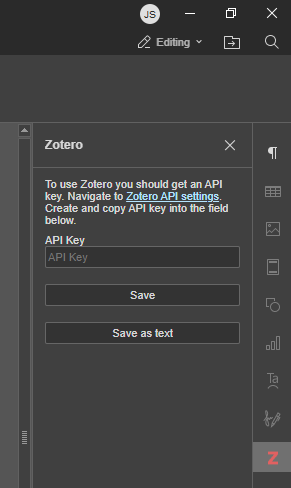
Samples: Translator, Thesaurus, Zotero
unvisible
The plugin does not display any windows or panels upon launch but can create them later during its operation. It provides a button (or buttons) to apply some transformations or manipulations to the document. For example, it can be used when the plugin displays different windows depending on the document content.
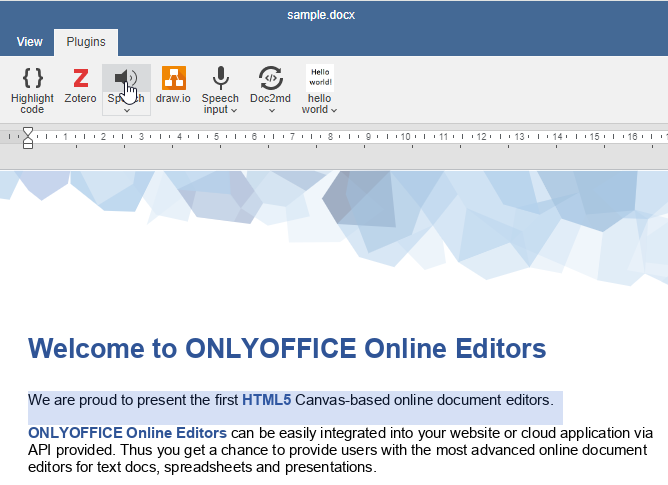
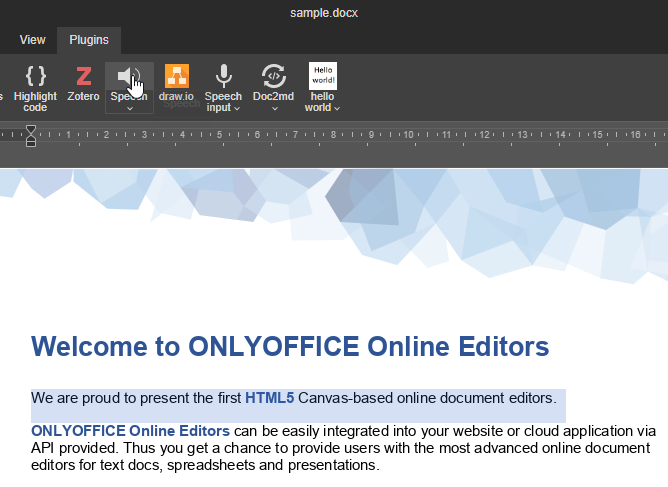
Samples: Hello world, Speech
A plugin of any type can create windows and tabs during its work.
Example
{
  "variations": [
    {
      "type": "window"
    }
  ]
}