Converting VBA macros
ONLYOFFICE macros are different from Microsoft macros because the latter use the Visual Basic for Applications (VBA) scripting language. JavaScript is more flexible and can be used with any platform (which is important as ONLYOFFICE editors are supported on Windows, Linux, and macOS).
This means that macros created in Microsoft Office are not compatible with ONLYOFFICE macros. You can convert them for use with ONLYOFFICE in two ways:
-
Automatically — using the AI plugin for ONLYOFFICE (recommended for quick conversion).
-
Manually — by rewriting the logic in JavaScript using the ONLYOFFICE Office API.
Automatic conversion using AI plugin
Starting from version 9.0, you can use the AI plugin built into ONLYOFFICE to automatically convert VBA code into JavaScript compatible with ONLYOFFICE macros:
-
Configure the AI plugin. See Configuring the AI plugin for details.
-
Open the View tab and click Macros.
-
Click the AI icon in the Macros window and select Convert from VBA.


-
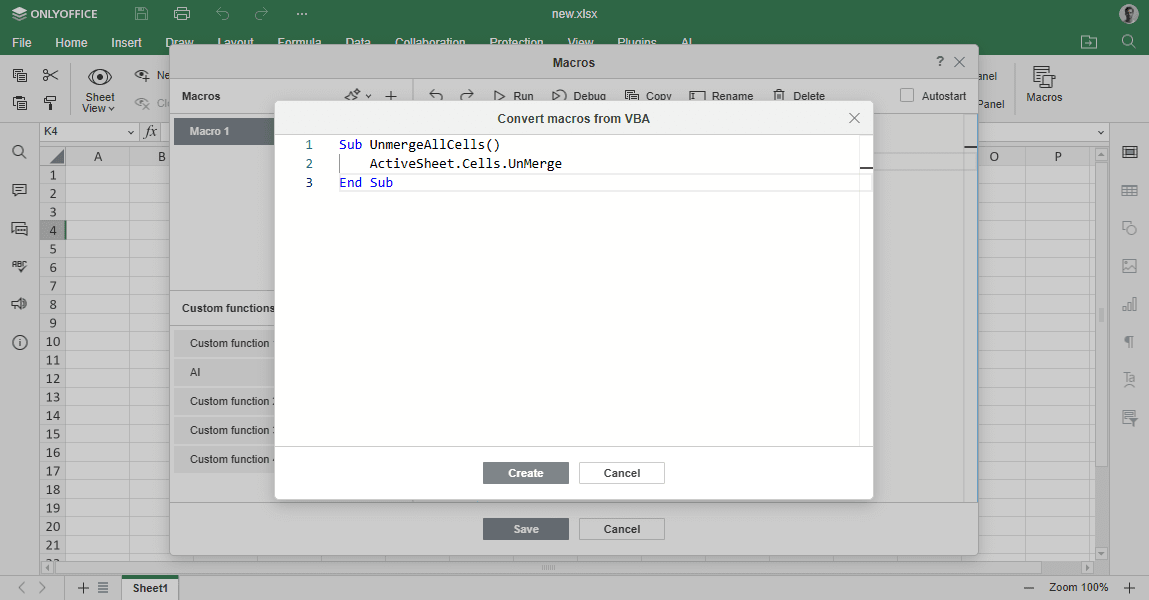
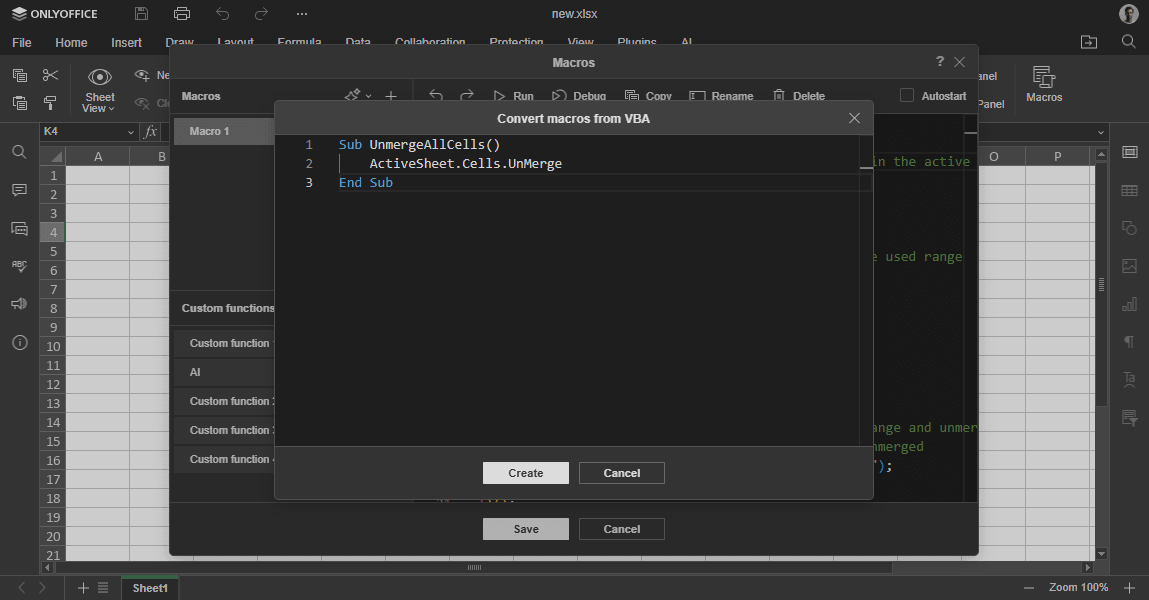
Insert VBA code into the Convert macros from VBA window and click Create. The generated macro sample will be inserted into the Macros window.
-
Review the code and make adjustments if necessary.
While the AI plugin can generate a complete and working macro, it's not always perfect. Make sure to review the output carefully and test it thoroughly, especially for complex macros.
-
Click
 to test the script.
For example, the following VBA macro unmerges all merged cells in the active sheet:
Sub UnmergeAllCells()
    ActiveSheet.Cells.UnMerge
End Sub
You can paste this VBA code into the AI plugin converter. The plugin will return the following JavaScript macro:
(function(){
    // This code will unmerge all the merged cells in the active worksheet

    // Get the active sheet
    var oWorksheet = Api.GetActiveSheet();

    // Get all cells in the worksheet by getting the used range
    var oUsedRange = oWorksheet.GetUsedRange();

    // Check if there is any used range
    if (oUsedRange) {
        // Unmerge all cells in the used range
        oUsedRange.UnMerge();
    }

    // Alternative approach: Get the entire sheet range and unmerge
    // This ensures all possible merged cells are unmerged
    var oRange = oWorksheet.GetRange("A1:XFD1048576");
    oRange.UnMerge();
})();
Run this macro to check that it successfully unmerges all merged cells in the worksheet.
How the request is processed
When the AI plugin handles a VBA conversion request, it follows this execution flow:
- VBA input analysis: The provided VBA code is parsed and its logic is detected (ranges, formulas, loops, conditions, and actions).
- Office API mapping: VBA operations are mapped to equivalent ONLYOFFICE Office API methods.
- JavaScript macro generation: A JavaScript macro compatible with ONLYOFFICE macros is generated.
- Result insertion: The generated script is inserted into the Macros window for review.
- Validation and adjustment: You review, test, and adjust the script if needed, especially for complex or VBA-specific behavior.
If VBA conversion fails, the plugin will either output an error message or write a macro with comments explaining why it failed.
Manual conversion of VBA macros
If the AI-generated version doesn't work properly, or you want to fully understand and control the macro behavior, you can convert your VBA macro manually:
- Analyze the logic of your original VBA macro.
- Find equivalent methods and events in the ONLYOFFICE Office API.
- Rewrite the macro in JavaScript.
- Test it directly in ONLYOFFICE editors.
For example:
Sub Example()
    Dim myRange
    Dim result
    Dim Run As Long

    For Run = 1 To 3
        Select Case Run
        Case 1
            result = "=SUM(A1:A100)"
        Case 2
            result = "=SUM(A1:A300)"
        Case 3
            result = "=SUM(A1:A25)"
        End Select
        ActiveSheet.range("B" & Run) = result
    Next Run
End Sub
The macro calculates the sum of the values from the three cell ranges of the A column and writes the results to the three cells of the B column.
The same result can be achieved using ONLYOFFICE macros. The code is almost identical if you know both VBA and JavaScript:
(function()
{
  for (let run = 1; run <= 3; run += 1) {
    let result = "";
    switch (run) {
    case 1:
      result = "=SUM(A1:A100)";
      break;
    case 2:
      result = "=SUM(A1:A300)";
      break;
    case 3:
      result = "=SUM(A1:A25)";
      break;
    default:
      break;
    }
    Api.GetActiveSheet().GetRange(`B${run}`).Value = result;
  }
})();
The same approach applies to any other VBA macro.