DocSpace MCP
The ONLYOFFICE DocSpace MCP server allows AI agents in Desktop Editors to interact with your DocSpace instance, enabling document management operations through natural language commands.
Prerequisites
Before connecting the DocSpace MCP server, ensure you have:
- ONLYOFFICE Desktop Editors version 9.2 or higher
- Access to your ONLYOFFICE DocSpace instance (SaaS or on-premises)
- Valid API key for DocSpace
- Docker installed and running on your machine
- Configured AI provider (OpenAI, Anthropic Claude, or other supported LLM)
Getting a DocSpace API key
To obtain an API key from your DocSpace instance:
- Log in to your DocSpace portal as an administrator
- Navigate to Settings → Developer Tools → API
- Create a new API key or use an existing one
- Copy the API key for use in the configuration
Configuration
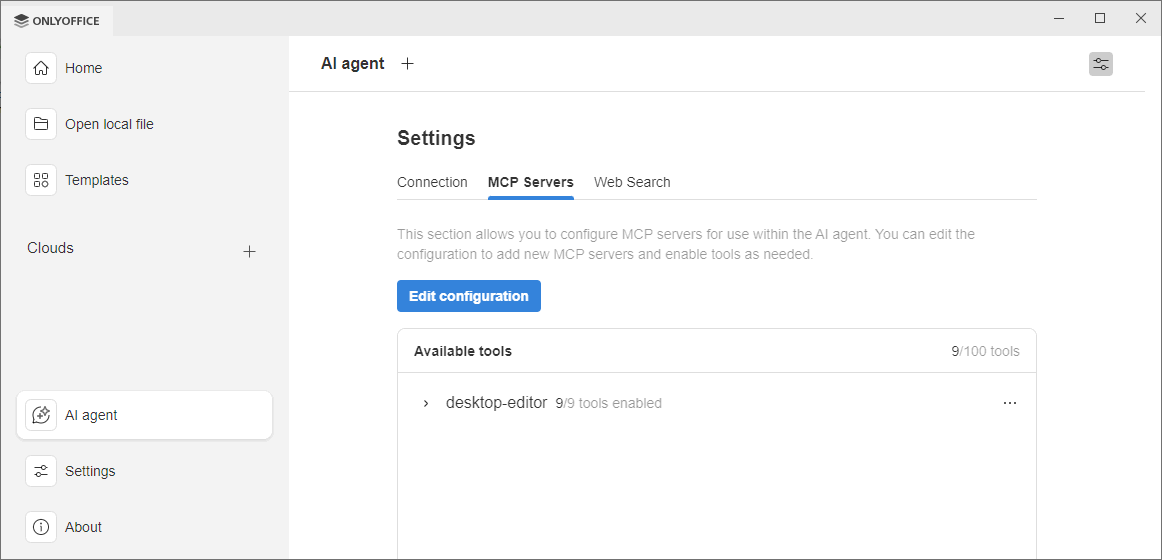
Step 1: Access MCP configuration
- Open ONLYOFFICE Desktop Editors
- Navigate to the start window
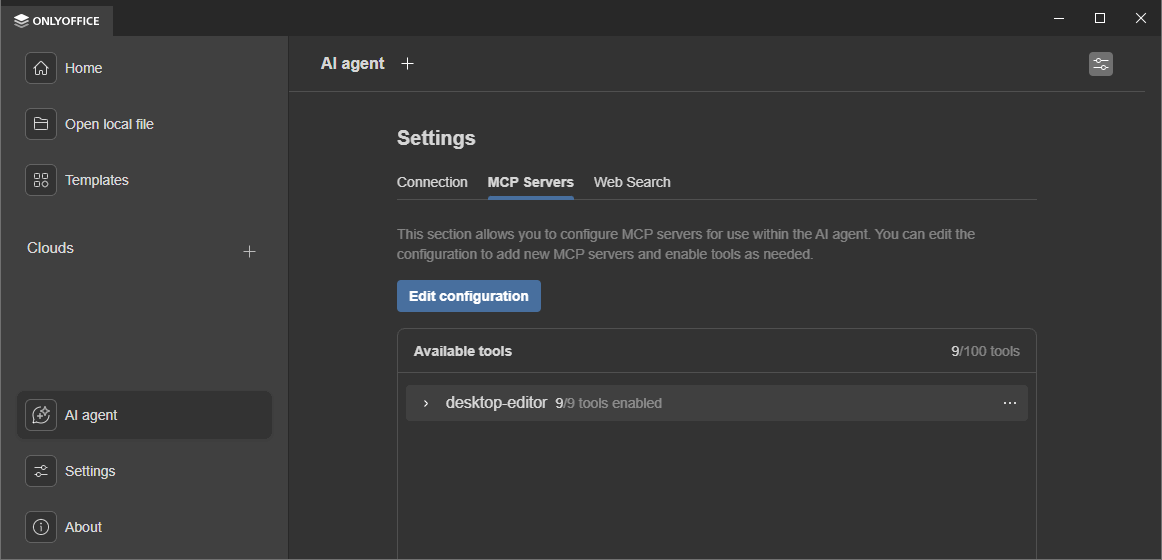
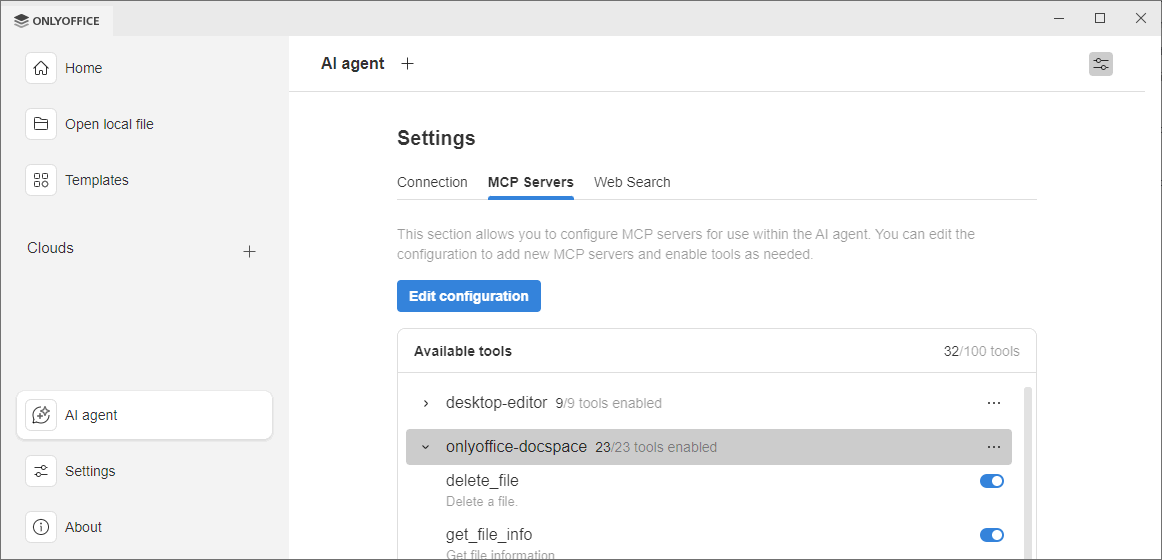
- Go to AI agent → MCP Servers
- Click Edit configuration
Step 2: Add DocSpace server configuration
Enter the following JSON configuration, replacing the placeholder values with your DocSpace details:
{
  "mcpServers": {
    "onlyoffice-docspace": {
      "command": "docker",
      "args": [
        "run",
        "--interactive",
        "--rm",
        "--env", "DOCSPACE_BASE_URL",
        "--env", "DOCSPACE_API_KEY",
        "onlyoffice/docspace-mcp"
      ],
      "env": {
        "DOCSPACE_BASE_URL": "https://your-instance.onlyoffice.com",
        "DOCSPACE_API_KEY": "your-api-key-here"
      }
    }
  }
}
Configuration parameters
- DOCSPACE_BASE_URL: The full URL to your DocSpace instance (e.g.,
https://your-company.onlyoffice.com) - DOCSPACE_API_KEY: Your DocSpace API key obtained from the Developer Tools section
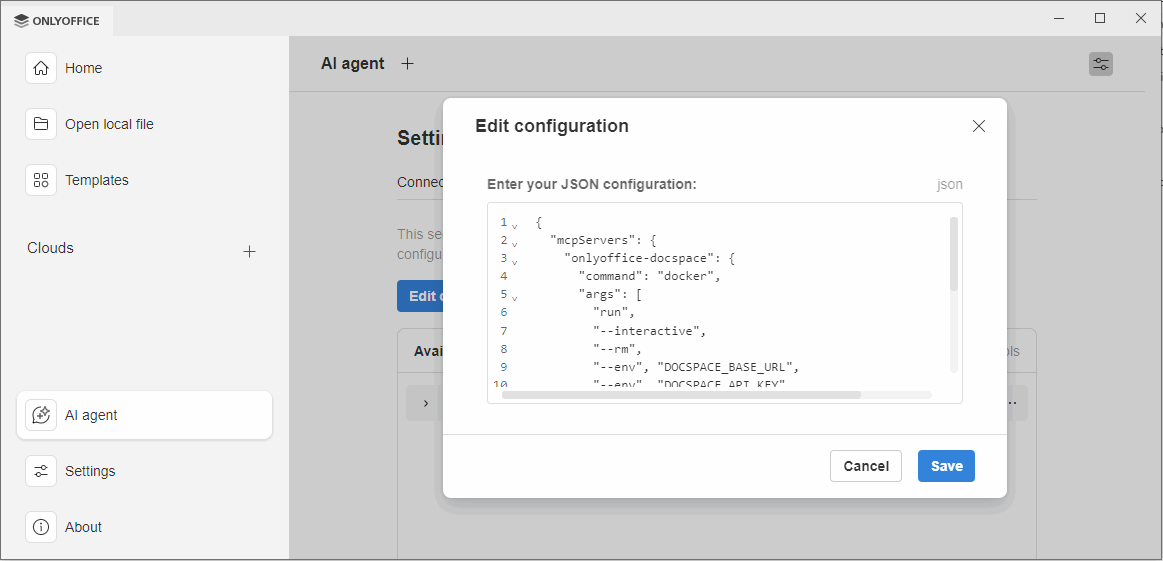
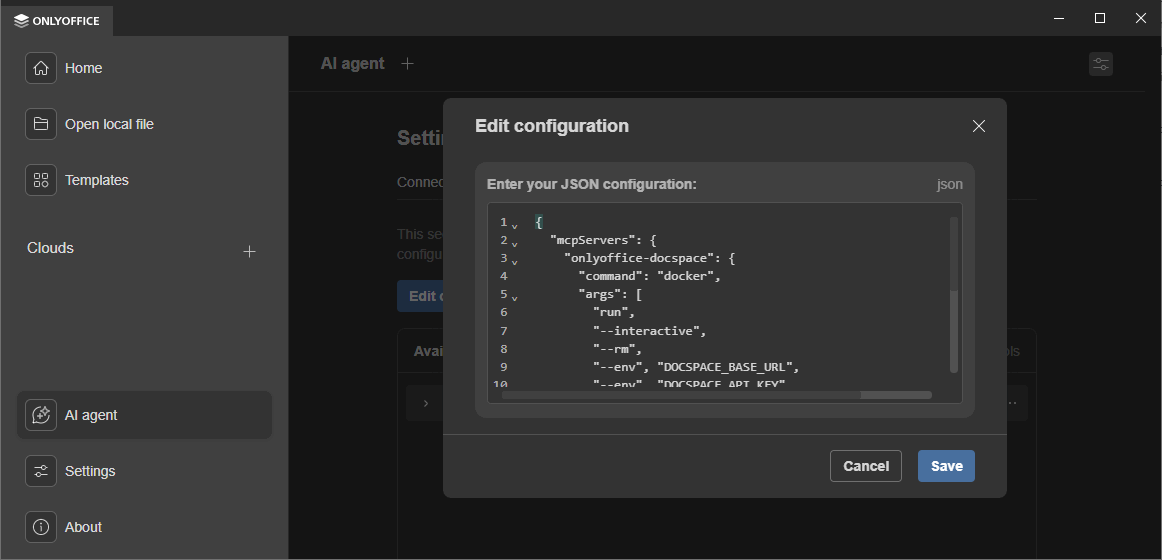
Step 3: Save and verify
- Click Save to apply the configuration
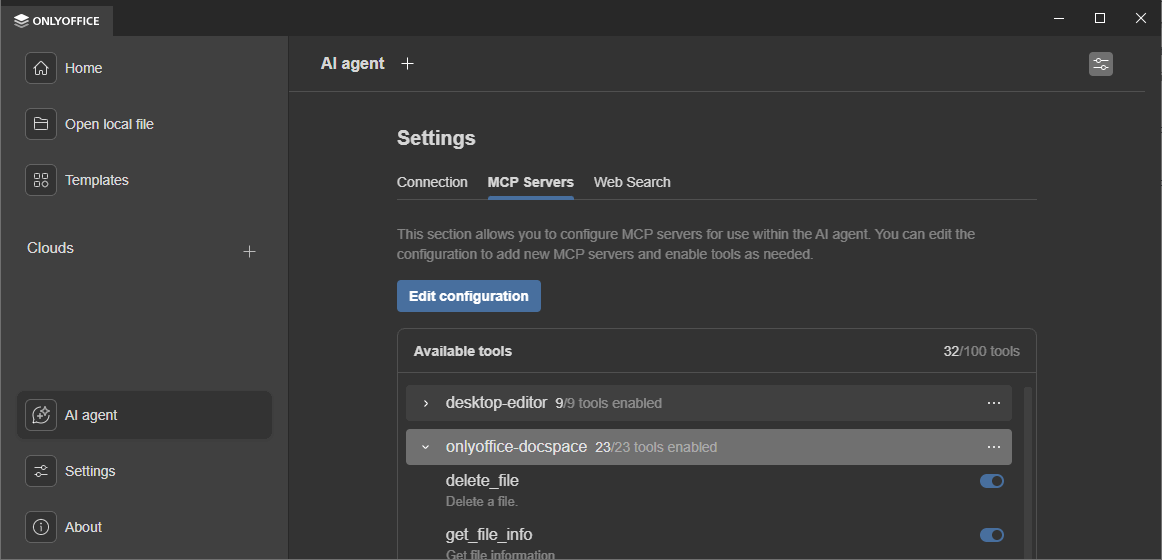
- The DocSpace MCP server should appear in your servers list
- Verify that the server status shows as connected
- Enable the tools you want to use
Available tools
Once connected, the DocSpace MCP server provides various tools for document management operations:
- File operations: List, read, create, update, and delete files
- Folder management: Navigate folder structure, create and manage folders
- Search: Find documents and folders in DocSpace
- Sharing: Manage document sharing and permissions
- Metadata: Access and modify document properties
Usage examples
After connecting the DocSpace MCP server, you can use natural language commands in the AI agent:
- "List all documents in the shared folder"
- "Create a new folder called 'Q1 Reports' in DocSpace"
- "Find all presentations modified last week"
- "Share the document 'Budget 2026.xlsx' with john@example.com"
- "Show me the contents of the Marketing folder"
The AI agent will automatically utilize the DocSpace MCP tools to execute these commands and display the results.
Troubleshooting
Server fails to start
- Verify that Docker is installed and running:
docker --version - Check Docker daemon status
- Ensure the Docker image is available:
docker pull onlyoffice/docspace-mcp
Authentication errors
- Verify your API key is correct and has not expired
- Check that the DocSpace instance URL is accessible from your machine
- Ensure the API key has appropriate permissions for the operations you're attempting
Connection timeout
- Verify your DocSpace instance is online and accessible
- Check firewall settings that might block the connection
- Ensure your network allows connections to the DocSpace URL
Tools not appearing
- Restart ONLYOFFICE Desktop Editors after saving the configuration
- Check that the MCP server status shows as "Connected"
- Review Docker logs:
docker logs <container-id>
Notes
- The DocSpace MCP server is currently in preview and may undergo changes
- All operations are performed using your API key's permissions
- Network connectivity to your DocSpace instance is required
- The server runs locally in a Docker container and does not store credentials
- Multiple DocSpace instances can be configured with different server names
Additional resources
For more information about the DocSpace MCP server: